

Setting up Akamai CDNs
When running managed dedicated on the Akamai Cloud, you need to set up 2 CDNs, one for your API endpoint deployments, and one for your developer portal.
This document outlines the configurations you need to add to your Akamai CDNs to set them up to access your API gateway and developer portal.
All configurations in this guide were done on the Akamai Property Manager, see the Akamai docs for more details.
Domains
Before you configure the CDN for your API Gateway and Developer Portal, you will to decide how you would like your domains to be set up. Generally, you will provision two types of domains - a static domain for production and wildcard domains for preview environments.
For preview environments, you will use wildcard domains so that each environment
(normally each git branch) will have its own subdomain. For example, you might
use *.api.example.com for the API gateway and *.dev.example.com for the
developer portal. This will allow you to have URLs for each environment like
https://my-environment-123.api.example.com and
https://my-environment-123.dev.example.com.
For production, you will want to use friendly domains like api.example.com and
developers.example.com. Some customers also choose to host environments like
staging on custom domains as well. This is up to you, just let your Zuplo
account manager know how you would like to set up your domains.
The setup for both configurations is the same, but the domain name and certificates will be different.
Prerequisites
- Provision the domains that you would like these CDNs to have and certificates for those domains, according to the domain section.
- Request the Origin URLs for your API gateway and developer portal from your Zuplo account manager.
- Let your Zuplo account manager know what hostnames/domains you will be using in your CDNs.
API Gateway CDN
This section guides you on how to configure your API Gateway CDN.
Add the API gateway domain you provisioned to the Property Hostname for the API Gateway CDN. See the Akamai docs on configuring HTTPS host names.
An example of how you might configure your API Gateway CDN domains for your preview environment and your production environment is below. Note that for your development environment CDN, you would need the wildcard domain since many development environments are named things like "api-main-someuuid.your-account.zuplo.work".

In this example, the preview environment domain is the wildcard domain
*.zuplo.apidemo.org, and the production domain is ftest.zuplo.apidemo.org.
After configuring the CDN domains, make the following behavior changes:
-
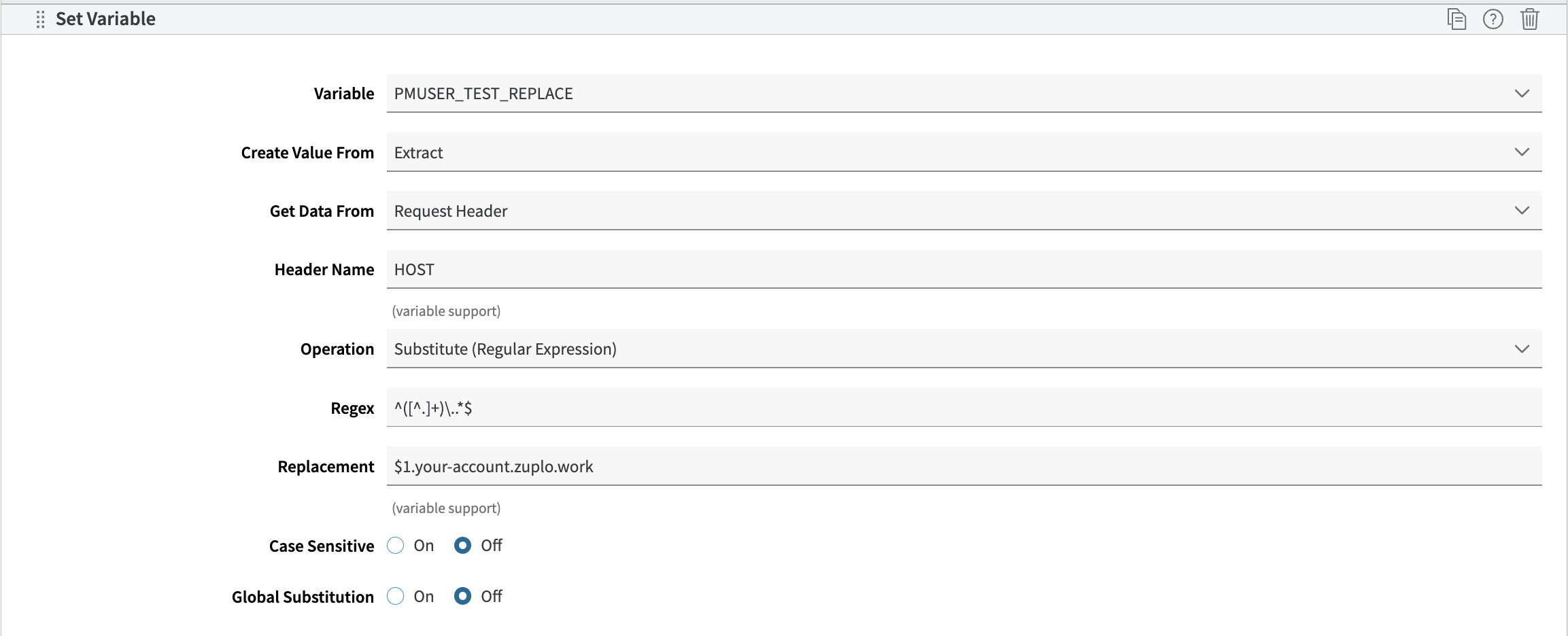
Create a Set Variable behavior with the following configurations (also shown in the screenshot below):
a. Create a variable. This is called PMUSER_REPLACE_URL in the example below, but you can name this anything. This is used for a URL REGEX replacement to forward the proper host header to the Zuplo Origin.
b. The "Create Value From" field should be "Extract".
c. The "Get Data From" field should be "Request Header".
d. The "Header Name" field should be "Host".
e. The "Operation" field should be "Substitute (Regular Expression)".
f. The "Regex" field should be ^([^.]+)..*$.
g. The "Replacement" field should be something like $1.your-account.zuplo.work. This is modeled off the origin URL. For example, if the origin URL is "cname.your-account.zuplo.work", then the replacement should be $1.your-account.zuplo.work.
h. Case Sensitive and Global Substitution should be set to "Off".
-
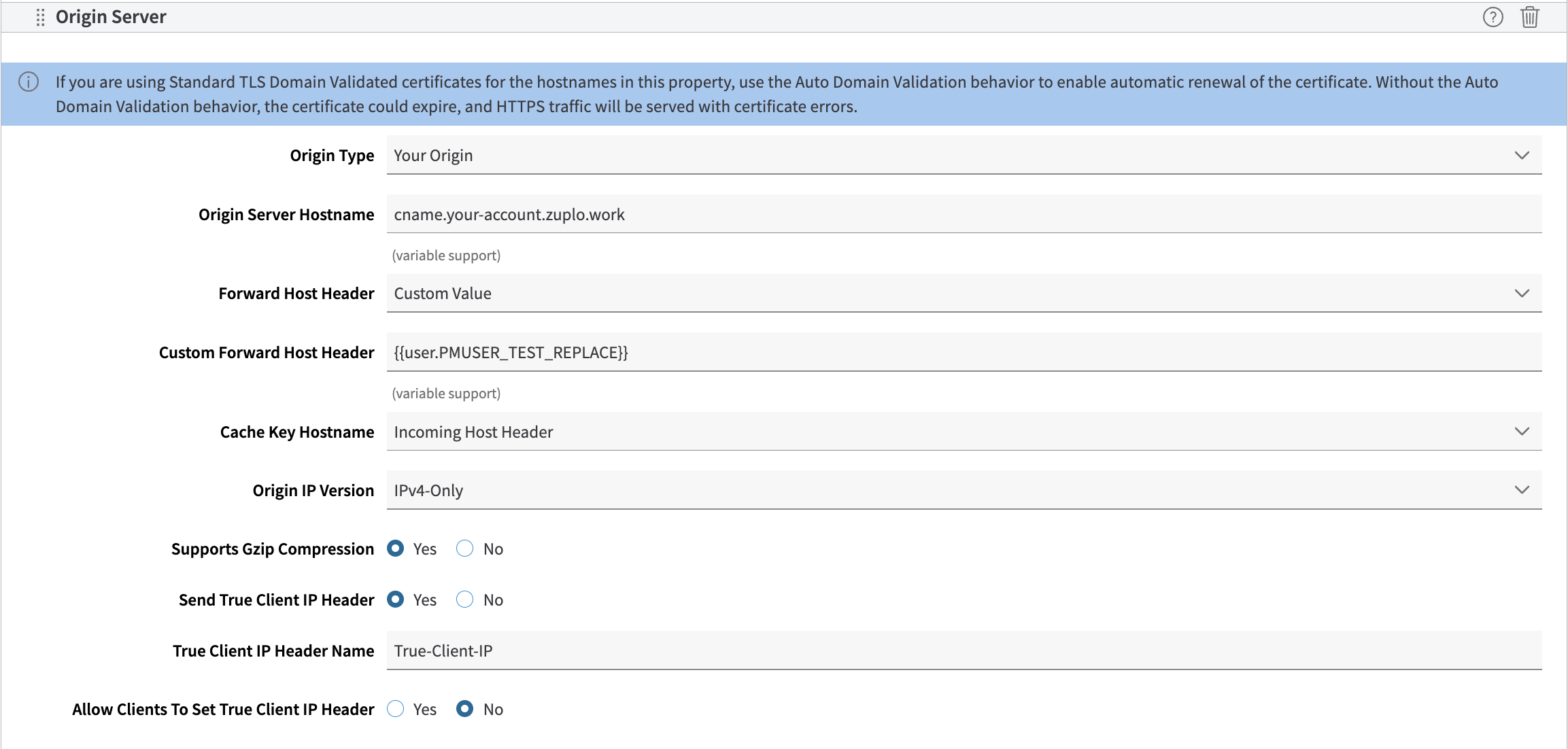
Configure the Origin URL to point to the URL given to you by Zuplo for your API gateway. Ensure that the Forward Host Header is configured to be a Custom Value, and the value should be the variable you created in the previous step. This would look something similar to below:
-
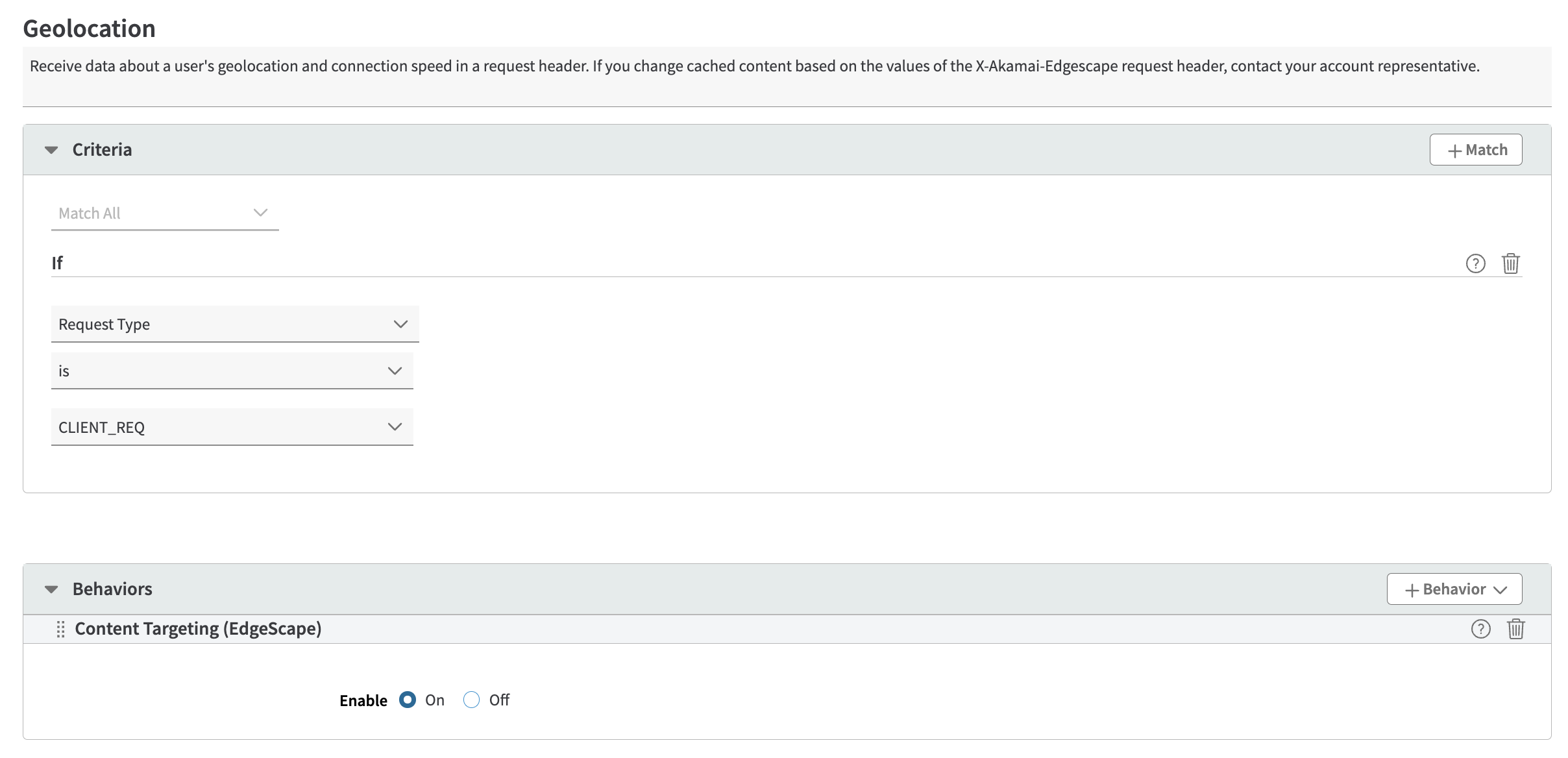
Turn on Content Targeting (Edgescape) in the Geolocation rule in the Property Manager Sidebar.
-
Enable all Allowed Methods rules (POST, OPTIONS, PUT, DELETE, PATCH) in the Property Manager sidebar.
Developer Portal CDN
This section guides you on how to set up the Developer Portal CDN.
Add the Developer Portal gateway domain you provisioned to the Property Hostname for the API Gateway CDN. See the Akamai docs on configuring HTTPS host names. This is done similarly to your API gateway CDN hostname configuration, but with the domains you provisioned for your Developer Portal.
An example of how you might configure your Developer Portal CDN domains for your preview environment and your production environment is below.
In this example, the preview environment domain is the wildcard domain
*.zuplo.apidemo.org, and the production domain is ftest.zuplo.apidemo.org.
Under the Default Rule page, add the following behaviors:
-
Configure the origin URL to be the URL given to be the one given to you by Zuplo for your Developer Portal. This will look similarly to how you configured it for your API Gateway CDN. Take note that the Forward Host header should also be set as the Origin Hostname.
-
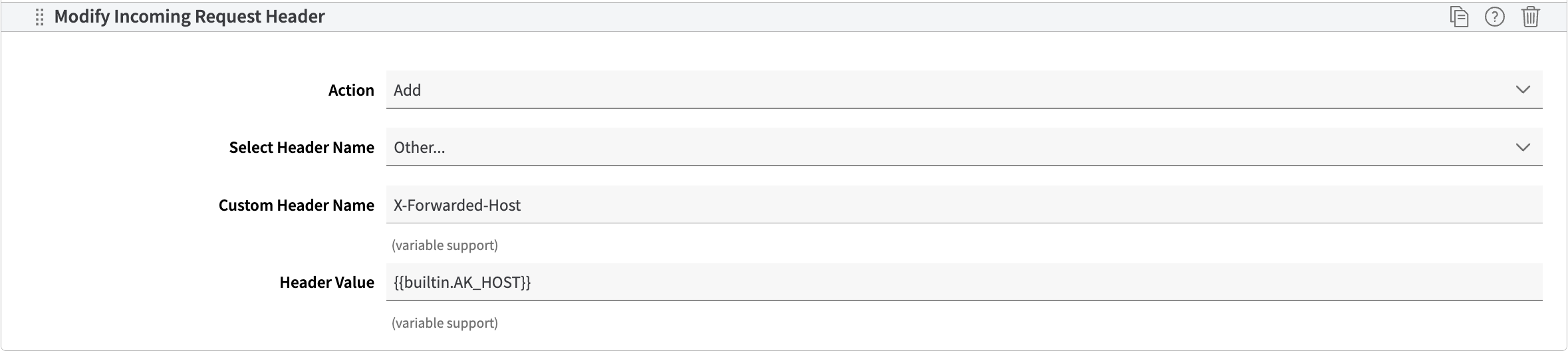
Modify Incoming Request Header behavior, with the following fields:
- Action: Add
- Select Header Name: Other
- Custom Header Name:
X-Forwarded-Host - Header Value:
\{\{builtin.AK_HOST\}\}.
This should look like the picture below:
-
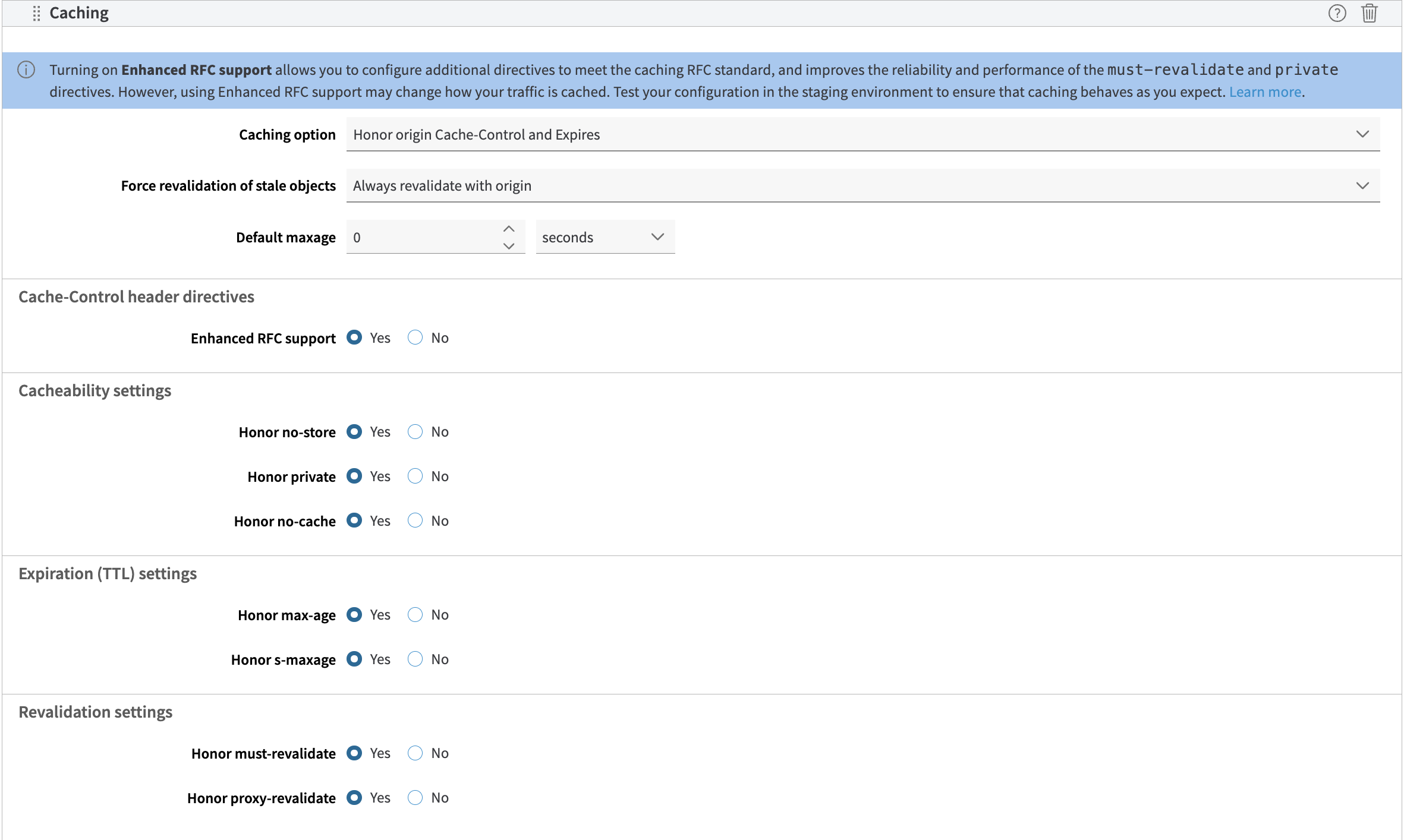
Caching, which should have the following configurations: Caching Option should be set to "Honor origin Cache-Control and Expires", Force Validation of stale objects should be set to "Always revalidate with origin", Default Maxage should be set to 0 seconds, and all the Cache-Control header directives should be enabled. This will look like below:
Congratulations, you've set up your Akamai CDN to serve your API Gateway and Developer Portal! At this point, you should be able to test that these things are working by either hitting an endpoint in your API gateway (e.g., mygateway.com/my/endpoint), or navigating to a page in your developer portal (e.g., myportal.com/home).